How to run GPU workloads on AWS
Let's discover how to launch and use GPU instances on Amazon Web Services (EC2).
Getting Started
AWS is one of the largest public cloud providers and offers a wide range of GPU-powered EC2 instance families for AI/ML training, inference, HPC, and graphics workloads. The main GPUs available in AWS are:
A10G, A100, H100, H200, L4, L40S, B200, T4, RTX PRO etc.
Tip: If you're just experimenting, start with a T4 or L4 — they're the most cost-effective for inference and small training jobs. For serious training, go with the other options.
What you'll need
- An AWS Account with billing enabled
- A service quota increase for GPU instances (new accounts have 0 GPU quota by default — you must request an increase via the Service Quotas console)
- An SSH key pair configured in the target region
- Some familiarity with the AWS Console or CLI
Availability
Note that the availability of GPUs and instances varies a lot across AWS regions — you might get capacity in one region for a specific GPU and might not get it in another region. For example, g7e.2xlarge with RTX Pro 6000 is a newer range GPU but it is only available in us-east-1. The ap-south-1 (Mumbai) region has good availability of L4 GPU (g6.xlarge) instances but spot capacity is very limited. Have a look at https://docs.aws.amazon.com/ec2/latest/instancetypes/ec2-instance-regions.html for instance type availability per region.
Requesting GPU quota (important!)
By default, AWS accounts have zero vCPU quota for GPU instance types. Before you can launch any GPU instance, you need to request a quota increase:
- Go to the Service Quotas console
- Search for Amazon Elastic Compute Cloud (Amazon EC2)
- Find the quota for your desired instance family, e.g.:
- Running On-Demand G and VT instances (for G5/G6)
- Running On-Demand P instances (for P3/P4d/P5)
- Click Request increase at account level and specify the number of vCPUs you need
- Wait for approval (can take minutes to a few days depending on the instance type)
This step catches most people off guard — please plan ahead if you need GPU capacity on AWS.
Launch a GPU instance
Option 1: AWS Console (UI)
-
Sign in to the EC2 Console
-
Click Launch Instance
-
Name your instance (e.g.,
gpu-workload-test) -
Choose an AMI — select one with GPU drivers pre-installed:
- AWS Deep Learning AMI (Ubuntu) — comes with CUDA, cuDNN, PyTorch, TensorFlow pre-installed. This is the easiest option.
- NVIDIA GPU-Optimized AMI — NVIDIA's official AMI on the AWS Marketplace
- Or use a plain Ubuntu 24.04 AMI and install drivers yourself
-
Select instance type — e.g.,
g6.xlarge(1x NVIDIA L4, 4 vCPUs, 16 GB RAM) -
Key pair — select your existing SSH key pair or create a new one
-
Network settings — ensure SSH (port 22) is allowed in your security group. If you plan to run Jupyter, also open port 8888.
-
IAM Role — If using SSM Session Manager, ensure an IAM role with the
AmazonSSMManagedInstanceCorepolicy is attached to allow EC2 to call AWS APIs. -
Storage — GPU workloads often need more disk. Increase the root volume to at least 100 GB (default is usually 8-30 GB which fills up fast with model weights and datasets).
-
Click Launch Instance
(Optional) Update system packages after connecting:
sudo apt update && sudo apt upgrade -y
Use
ubuntuas the username for Ubuntu-based AMIs, orec2-userfor Amazon Linux AMIs.
Verify GPU access
After connecting to your instance via SSH or Session Manager, verify that the GPU is recognized:
nvidia-smi
You should see output like:
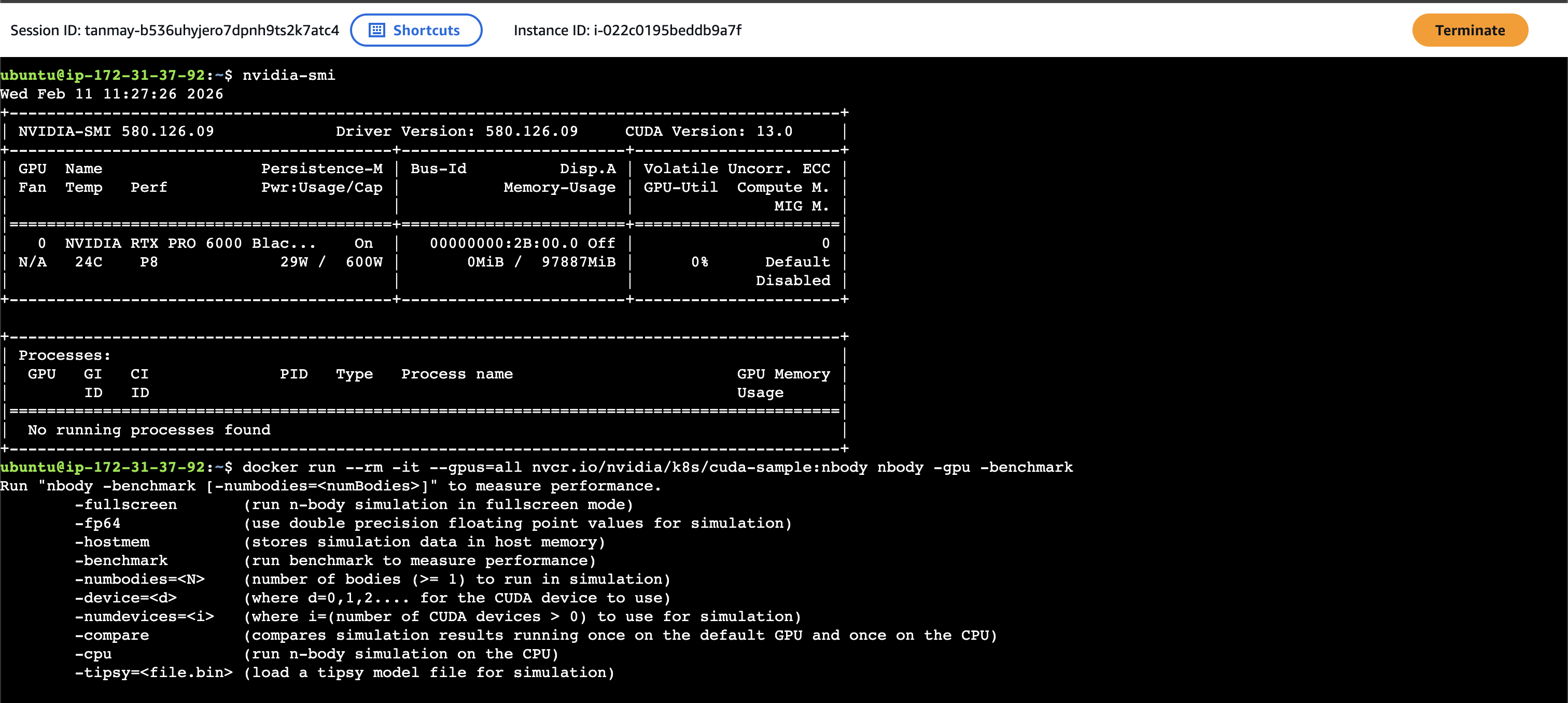
AWS Session Manager
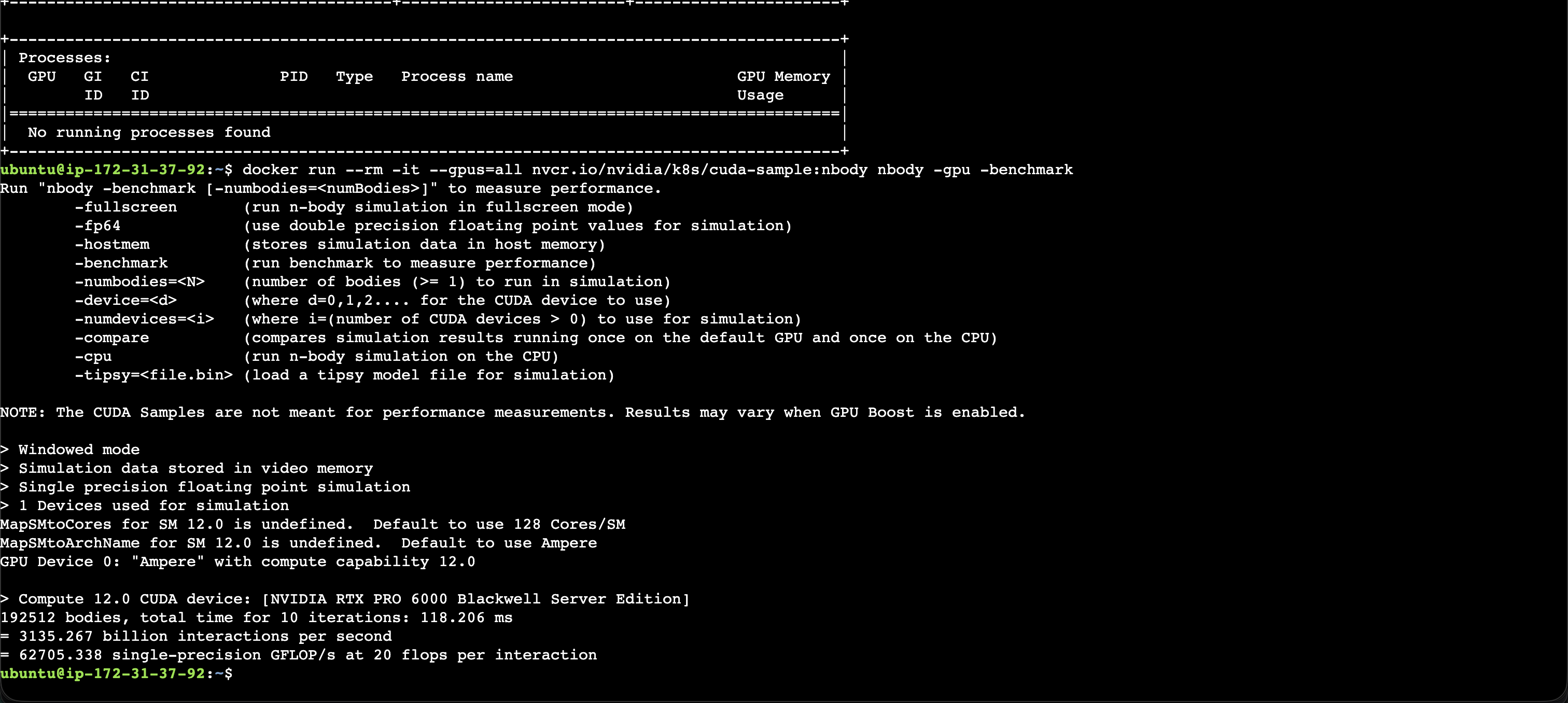
Example Run
Cost optimization tips
AWS GPU instances can get expensive fast. Here are some strategies I use:
-
Spot Instances — Up to 60-90% cheaper than on-demand. Great for fault-tolerant training with checkpointing. Request spot via the console or CLI.
-
Stop when not in use — GPU instances charge per-second. Stop your instance when you're not actively using it (storage charges still apply, but they're minimal).
-
Right-size your instance — Don't use a P5 with 8x H100s when a single L4 on a G6 will do. Match the instance to your workload.
-
Use Savings Plans — If you have predictable GPU usage, 1-year or 3-year commitments can save 30-60%.
-
Pick the right region — GPU pricing varies greatly by region.
us-east-1andus-west-2typically have the best availability and pricing.
Comparison with other providers
Compared to other providers in this series (Brev, Verda, E2E Networks), AWS offers:
- Pros: Widest range of instance types, deep ecosystem (S3, SageMaker, EKS), global availability, mature spot market
- Cons: Higher baseline cost, quota approval process can be slow, more configuration overhead compared to platforms like Brev that come pre-configured
For quick experimentation, platforms like Brev or Verda may be faster to get started with. But for production workloads at scale, AWS remains a strong choice due to its ecosystem and reliability.