How to run GPU workloads on Brev by NVIDIA
Let's discover how to run GPU workloads quickly using Brev by NVIDIA.
Getting Started
We'll be using Brev by NVIDIA as our inference provider. Brev is NVIDIA's cloud platform that gives you streamlined access to NVIDIA GPU instances across multiple cloud providers, with automatic environment setup and flexible deployment options. It includes pre-configured CUDA, Python, and Jupyter Lab support. It is a recently launched product and we got some credits via NVIDIA to experiment with the platform. The good part is they have multiple GPU cloud vendors attached to them which gives immense compute capacity at your disposal to start off with your AI/ML workloads very quickly.
Get started by creating an account at https://login.brev.nvidia.com/signin or learn more at https://brev.dev/.
What you'll need
- Brev account (NGC account can be used too)
- Basic Linux/SSH familiarity
Why Brev is useful
- You can launch GPU environments quickly with less manual setup
- Launchables provide one-click templates for common workflows
- CUDA and ML tooling are usually pre-configured
- You can connect using browser, CLI, SSH, or VS Code
Launch a GPU environment
-
Sign in to the Brev Console. You need an NVIDIA account (Developer/NGC) to continue.
-
Choose how you want to run GPU workloads:
- GPU Environments — Full VM access with NVIDIA GPUs for fine-tuning, training, and deploying AI/ML models (browser notebooks, CLI, or SSH).
- Launchables — Pre-configured GPU environments with one click.
- Deployments — Deploy NVIDIA NIM-based models in one click.
-
Select your GPU type and region. Brev aggregates capacity from multiple clouds, so options vary by region and availability.
-
Configure your instance: SSH keys, storage, and any custom settings.
-
Launch the environment and wait for it to become ready.
-
Connect to the environment:
- SSH/CLI:
brev shell(after installing the Brev CLI) - VS Code:
brev opento open the project in VS Code.
- SSH/CLI:
-
(Optional) Update system packages after connecting:
sudo apt update && sudo apt upgrade -y
Verify GPU access
Run:
nvidia-smi
If CUDA is installed correctly, you should see your GPU model and driver details.
Cost optimization tips
- Start with smaller GPUs (for example, L4) for experiments and inference.
- Stop or delete idle environments to avoid unnecessary charges.
- Use Launchables for quick iteration or to try new preconfigured AI workflows, then switch to custom environments only when needed.
- Keep storage reasonable; large disks can silently increase cost.
Screenshots
Here are some screenshots to help you visualize the process.
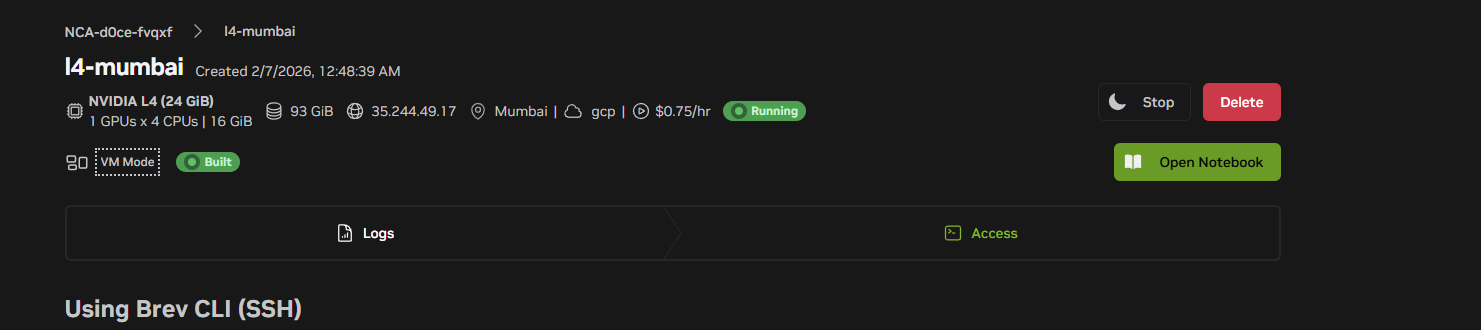
Brev Console Dashboard
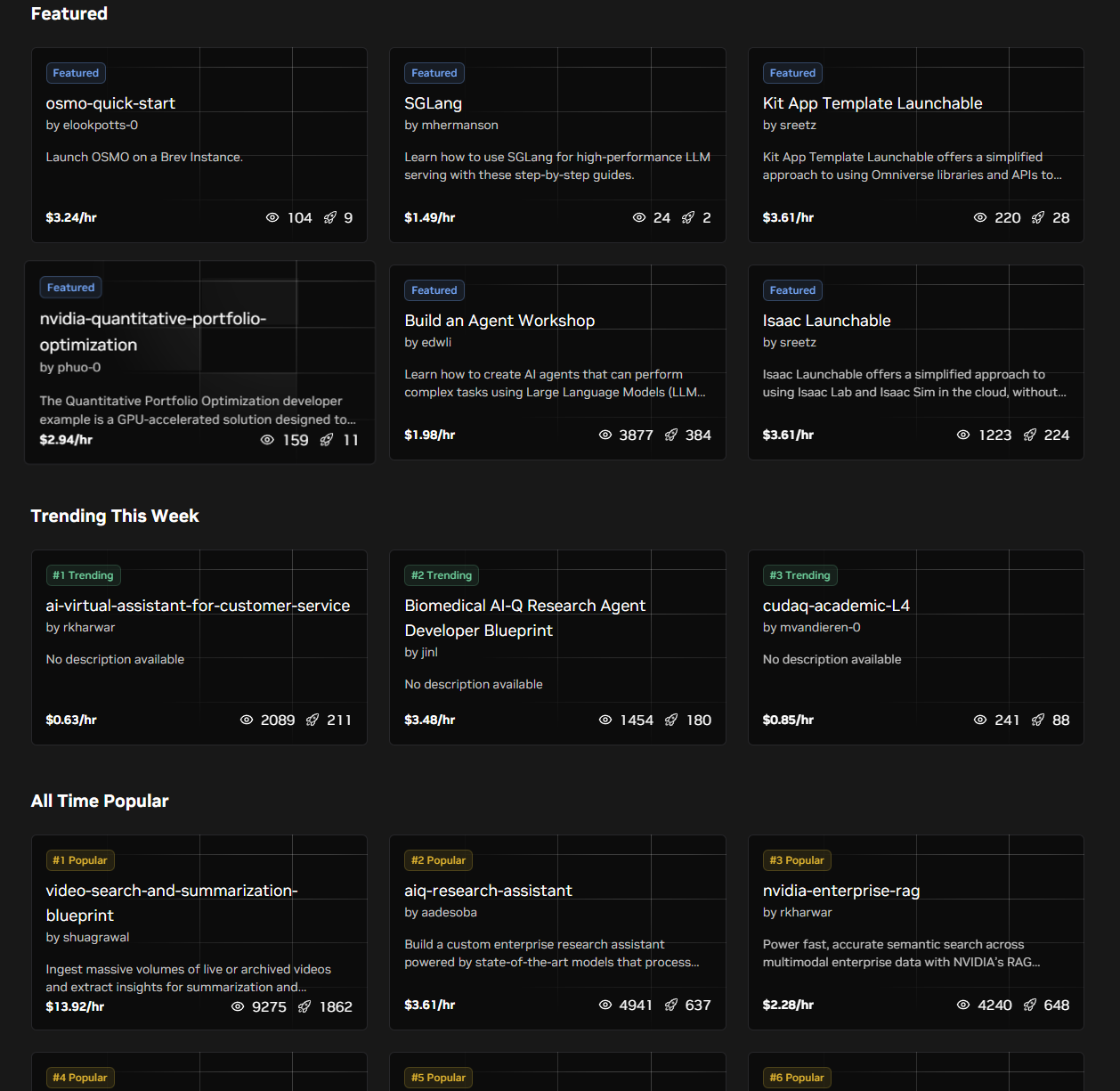
Launchable Examples
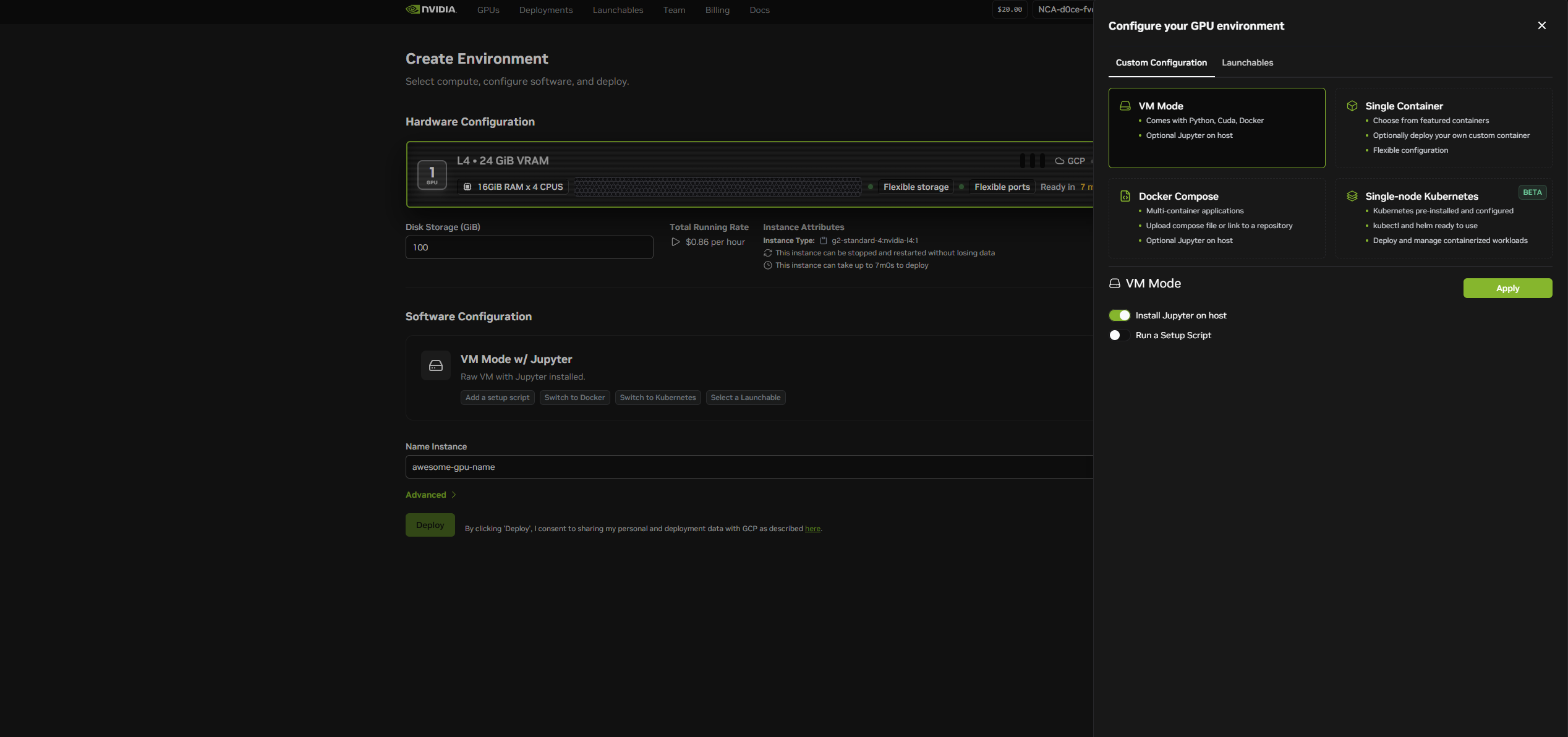
GPU Instance Selection
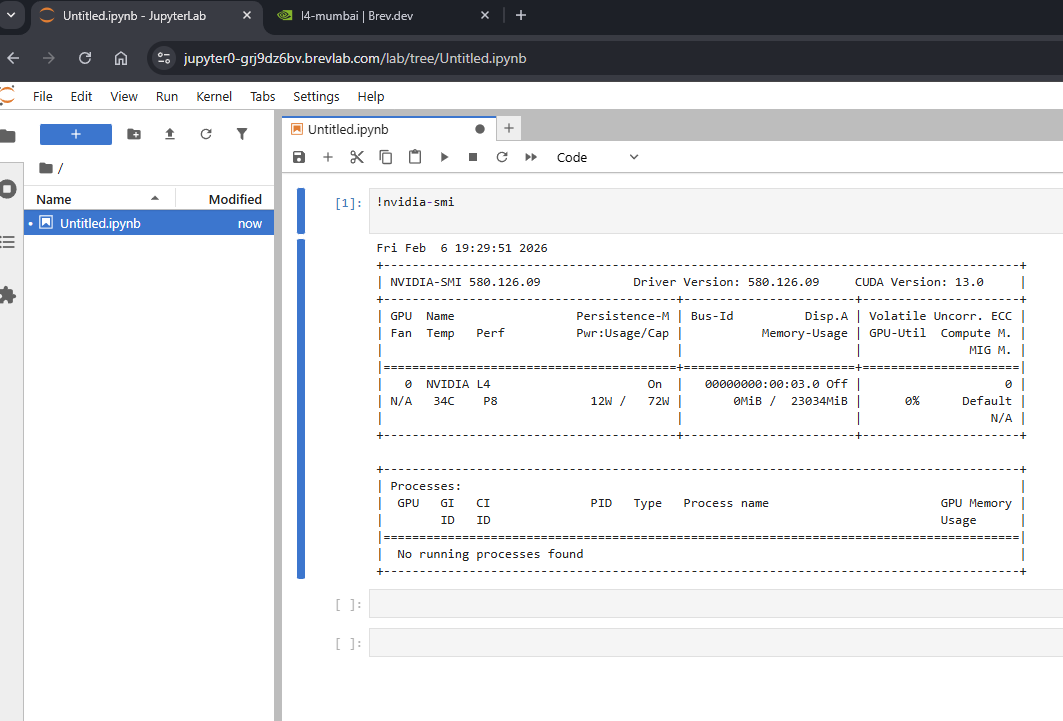
Working Lab with GPU