How to run GPU workloads on B200 or B300 GPU on Verda
Let's discover how to run GPU workloads on Verda (formerly DataCrunch).
Getting Started
Verda is a Finland-based hyperscaler with access to modern NVIDIA GPUs like B300, B200, H200, H100, and RTX Pro 6000. It is a good choice when you need high-end GPU capacity with flexible deployment options.
Get started by creating an account at https://console.verda.com. For first use, you may need to top up your account (for example, minimum $20).
What you'll need
- Verda account
- SSH public key
- Basic Linux/SSH familiarity
Launch a GPU instance
-
Create a new instance from the Verda console.
-
Choose pricing mode:
- Spot — lower cost, but can be interrupted
- On-demand — stable capacity, higher cost
-
Select the GPU type you need (for example: B300, B200, H200, H100, A100, RTX Pro 6000, or L4).
-
Configure node details:
- SSH key
- OS image (for example, Ubuntu 24.04 + CUDA)
- Storage and networking
-
Launch the instance and wait until it is in the running state.
-
Connect over SSH and verify GPU access:
nvidia-smi
Cost optimization tips
- Use spot instances for non-critical jobs and experiments.
- Use on-demand for production or long-running workloads requiring stability.
- Pick the right GPU tier for your use case; avoid over-provisioning.
- Shut down idle instances to control hourly spend.
Screenshots
Here are some screenshots to help you visualize the process.
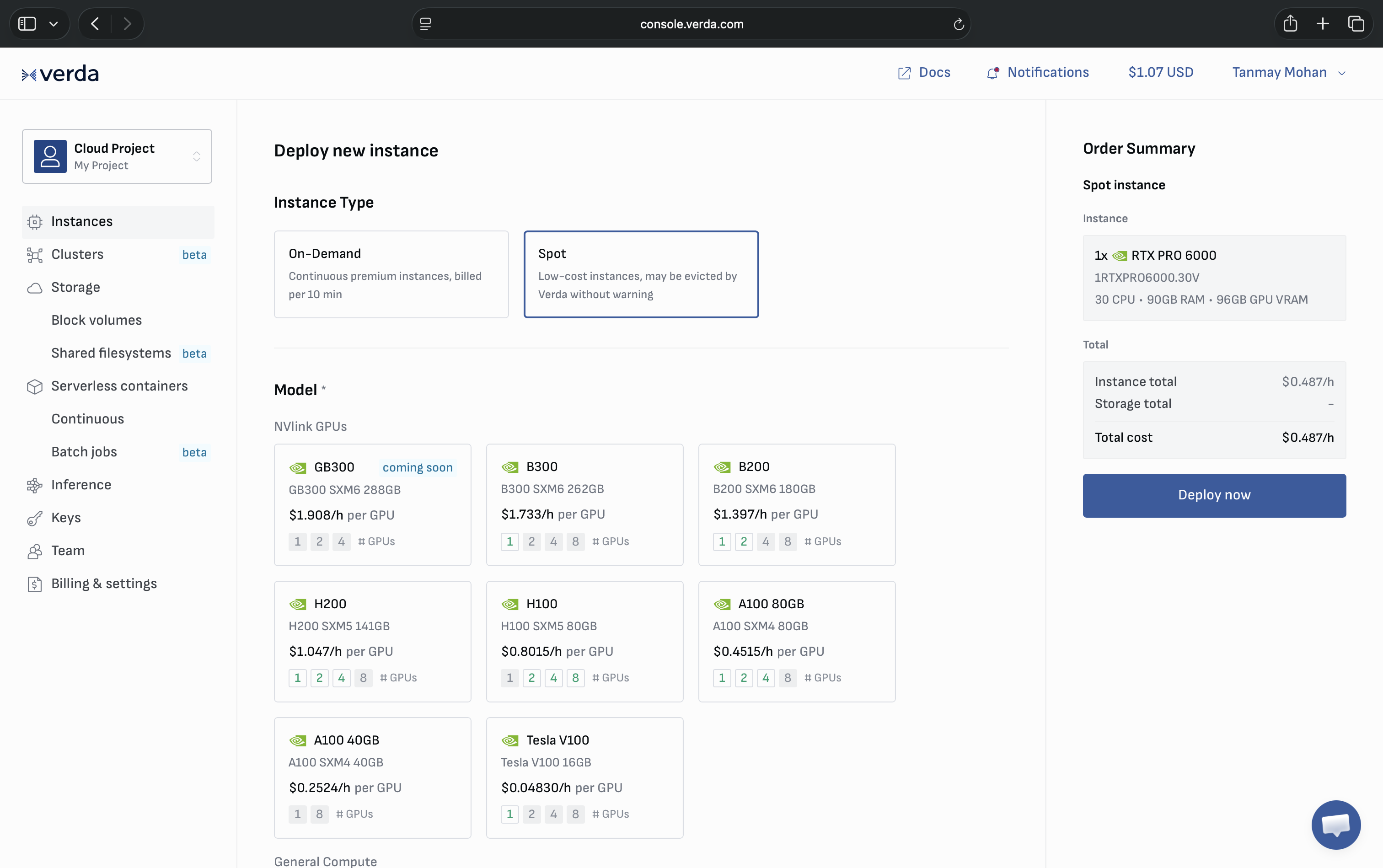
Verda Console Dashboard
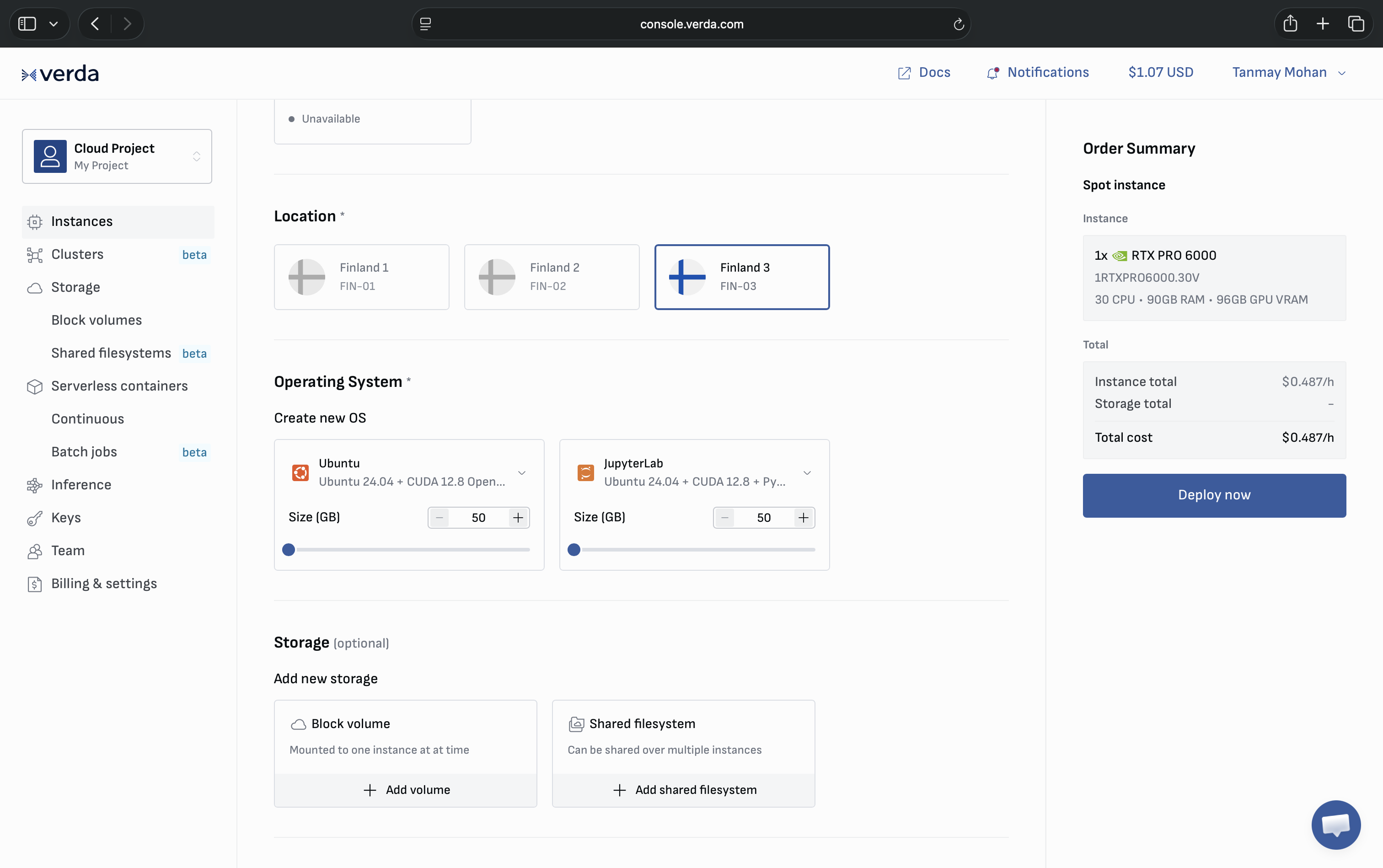
Instance Configuration
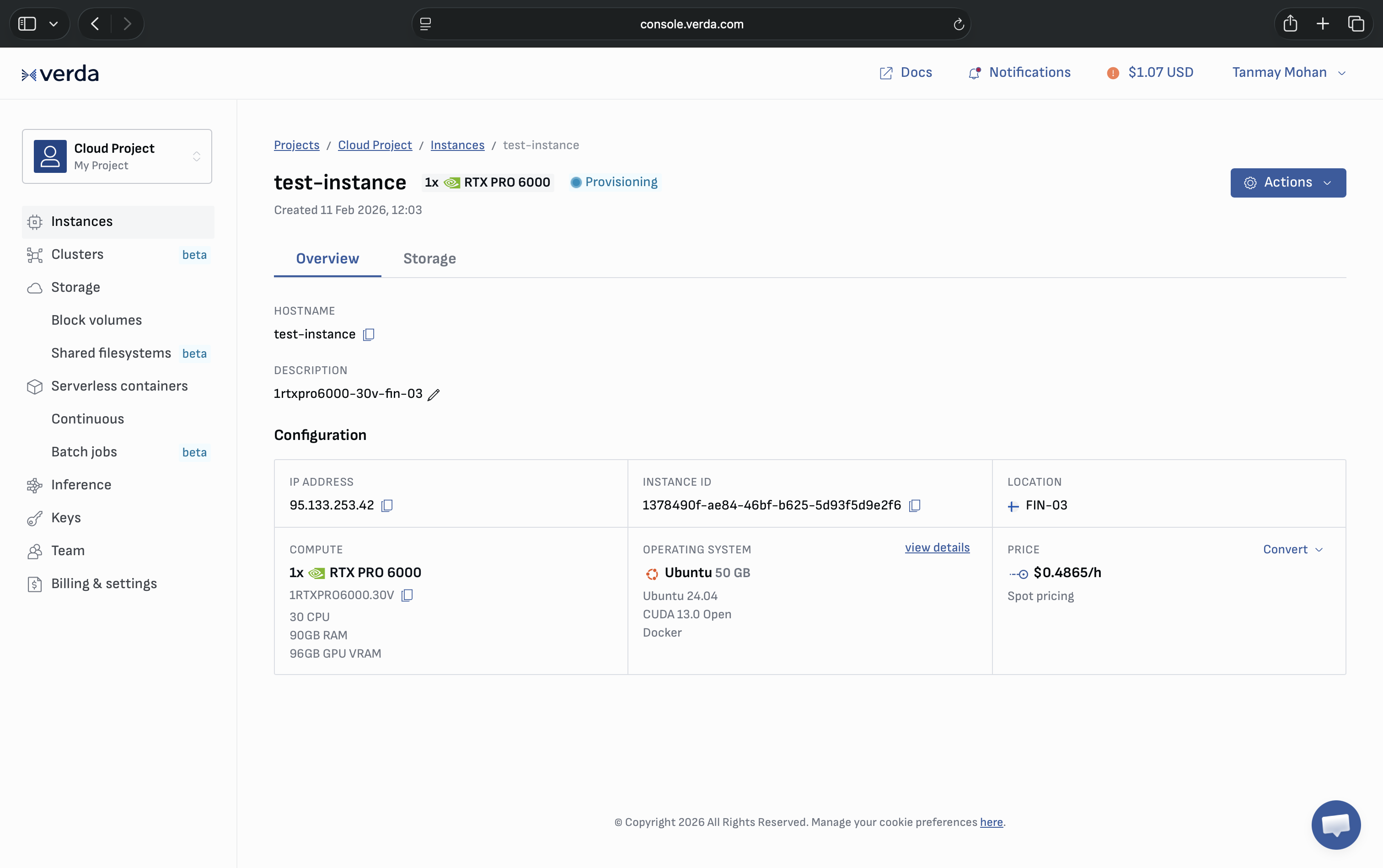
Running instance
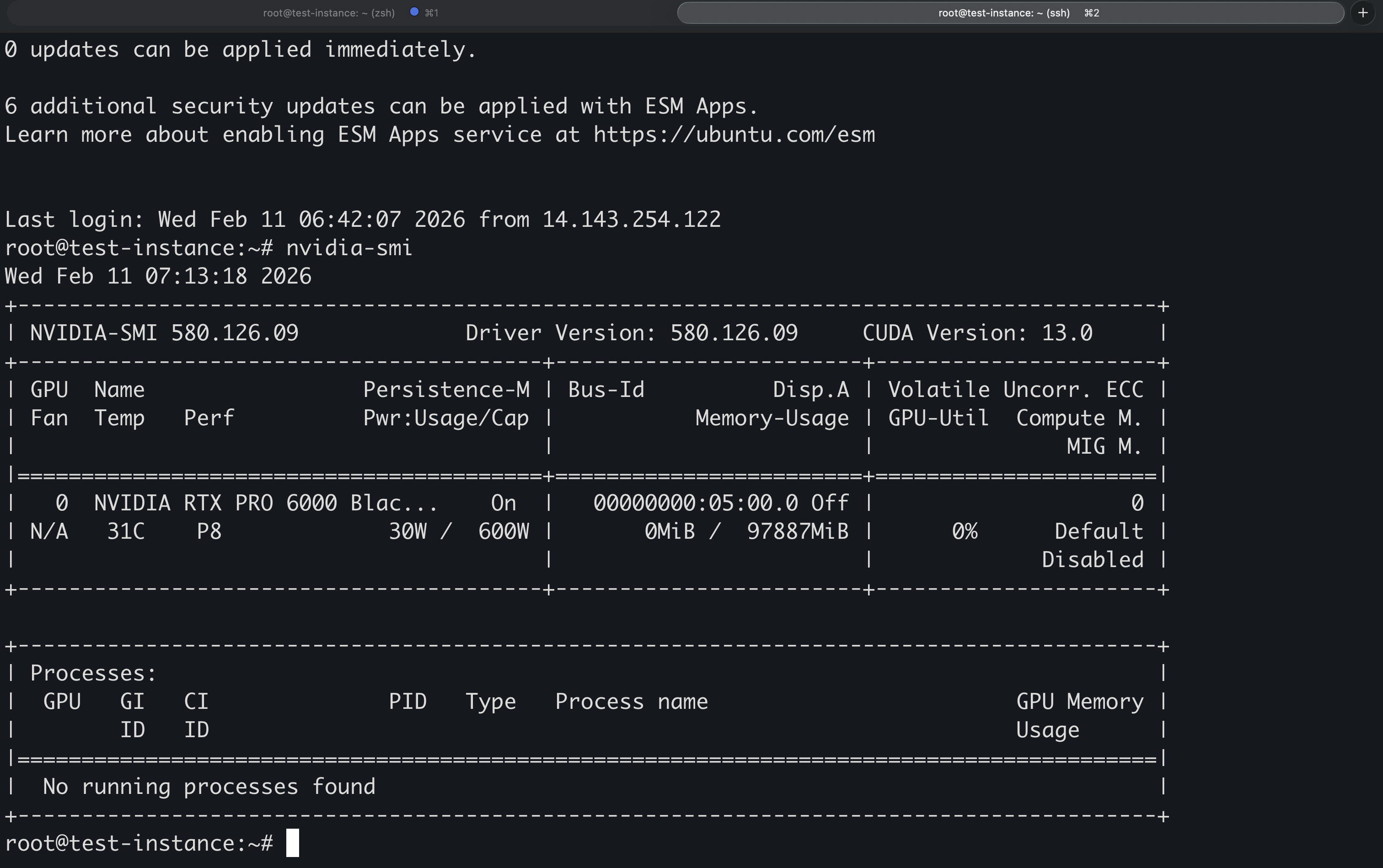
Running nvidia-smi command on instance
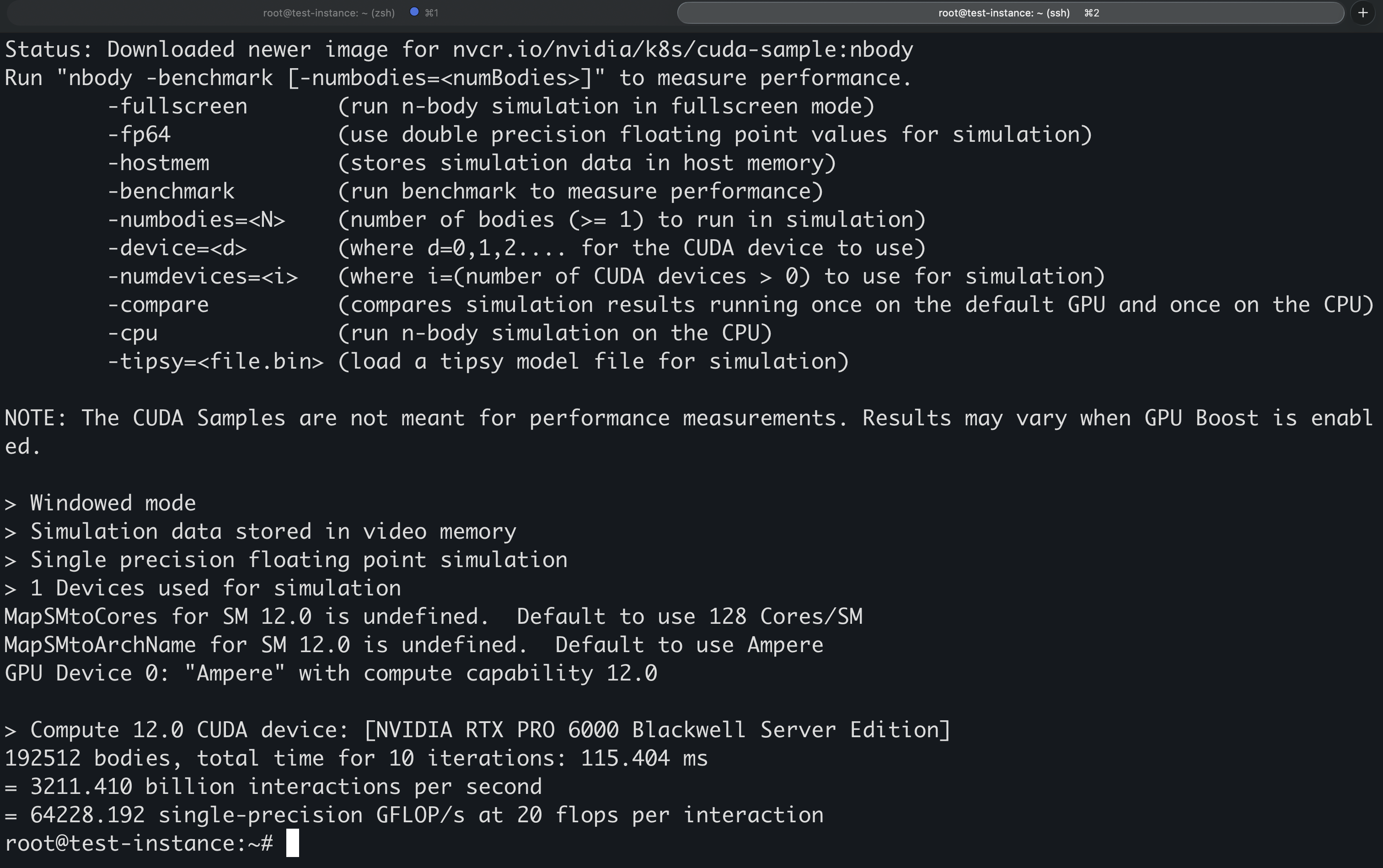
Sample docker benchmark details